

AI inside a shared HubSpot portal under a strict client AI policy

The client's AI policy ruled out AI-written copy on its sites, but its AI search work needed drafts, HubDB tables, modules and settings inside a HubSpot portal shared with other ministries. We ran an AI assistant inside that portal with controls that kept every visible change in a person's hands, and work we estimate at about 140 to 230 hours by hand took 50 logged hours.
Executive Summary

Context
A Catholic media nonprofit produces films, TV and digital series and runs five websites in a HubSpot portal it shares with its parent organization's other ministries. Its marketing lead and the parent's IT team wanted AI search work done without AI writing what visitors read.

What We Built
We built a way for AI to work inside a shared HubSpot portal where every change is a logged draft that a person publishes. A written split sets which tasks AI may do under the policy.

Tech Stack
- HubSpot Content Hub
- HubDB
- HubSpot Design Manager
- HubSpot Breeze Assistant
- Google Search Console
- Bing Webmaster Tools
- Google Rich Results Test
- Claude
Not a fit if nobody on your side can review drafts and click Publish within a few days, because every visible change waits for that person and the work stalls without them. It also assumes a policy that allows AI for research, data and technical work. If your policy keeps AI out of the CMS entirely, the work runs at manual pace and the hours comparison here won't hold.

The Challenge
The client wanted AI search work across five websites (catalog tables, structured data, crawl settings and page fixes) from a small block of hours, which meant an AI assistant would do much of the research, data and technical work inside its HubSpot portal. Working there, the assistant would see draft pages, HubDB tables, module code, Search Console and documents the client sent, not just the public site.
The client's marketing lead didn't want AI-written copy on its sites, or unpublished work such as a script going into a tool where it could end up public. The portal also isn't the client's alone. Its five sites share one HubSpot instance with the parent organization's other ministries, so HubSpot's all-domains crawler default would have changed their sites too, and publishing an unchecked draft could push another editor's unsaved edits live.
The line also moved while the work ran. Earlier in the engagement, a Wikipedia section draft and some catalog descriptions were drafted with AI and then reviewed and approved by the client. On 22 October the client's marketing lead and the parent's IT lead set the rule that applies now: AI for research, data and technical work, copy written or approved by the client, and every visible change published by a person.

Our Approach
We considered keeping the assistant on the public site and doing the portal work by hand. But the HubDB tables, module code and per-domain settings were most of the job, and we estimated that doing them by hand would take several times the hours available. So we let the assistant into the portal and controlled what could reach a visitor instead. It saved every change as a page draft or an unpublished table, and the client either clicked Update or Publish or approved each publish we made. Each change went into a log with the page or table ID, its before state and the step that undoes it.
In the shared portal, we set crawler and sitemap changes on each of this ministry's domains rather than through the all-domains default, and we left other ministries' pages, templates and DNS alone. Where a shared template caused a problem, we wrote it up for IT as a change-order item instead of editing it. Before each publish we compared the draft with the live page and published only if it held our change alone; all 20 staged drafts passed on 22 October. After each publish we fetched the live page source, parsed the JSON-LD and ran Google's Rich Results Test.
Within the policy, the assistant did research (sources, streaming availability, link checks), data work (catalog tables, structured data) and technical work (modules, sitemaps, redirects), and HubSpot Breeze is held to research, tasks and records. This costs pace, because nothing goes live until someone on the client side has reviewed it, so the client's review time sets the schedule.

Impact

Every visible change approved by a person
No change reached a visitor without the client approving it, because the AI worked only in drafts and unpublished tables. Any change can be reversed from the log by someone who wasn't there.
Other ministries' sites left untouched
Nothing outside this ministry's sites changed, because robots.txt and sitemap edits used per-domain settings. The draft check meant no other editor's unsaved work went live with ours.
Structured data checked on the live page
The JSON-LD parsed on all 9 pages across 4 sites and on the catalog hub, and the Rich Results Test passed the main home page's Organization markup. Because the checks read the live source, a cached or draft copy couldn't hide a failure.
Weeks of manual work in a fraction of the hours
We estimate the work at about 140 to 230 hours by hand, and it took 50 logged hours. Only the starter-text audit and cleanup line (28 to 43 hours) is our own documented manual estimate. The rest is an experienced practitioner's estimate per task, so treat the range as a guide.
Any change a visitor could see was saved as a page draft or an unpublished HubDB table. The client clicked Update or Publish, or approved each publish we made.
Each change was logged with the page or table ID, the before state and the exact undo step, so the client's team can reverse it without us.
Crawler and sitemap settings were set per domain, never through the all-domains default that the parent organization's sites also inherit.
Each draft was compared with the live page before publishing. After publishing, the live source was fetched with a cache buster and run through the Rich Results Test.
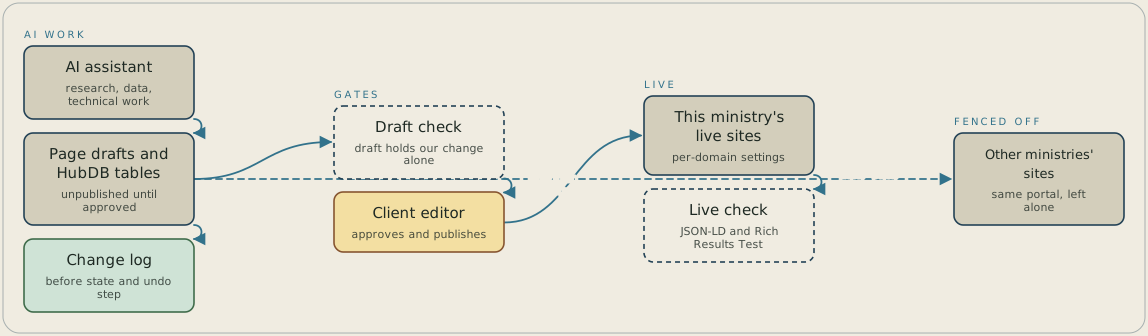
Systems: an AI assistant (works through the consultant's logged-in browser); HubSpot page drafts and unpublished HubDB tables (where every change is saved first); a change log (records the before state and undo step for each change); a draft check (compares each draft with the live page); the client editor (approves and clicks Publish); the live site (this ministry's domains only); a live check (fetches the page source, parses the JSON-LD and runs the Rich Results Test); and the parent organization's other sites in the same portal (fenced off). Flows: the assistant writes a change into a draft or unpublished table (trigger: any change a visitor could see) and the change log records it at the same moment. The draft goes to the draft check (gate: publish only if the draft holds our change alone), then to the client editor (gate: a person approves and publishes). Published changes reach the live site, then the live check. Crawler and sitemap settings go to this ministry's domains only, through per-domain settings; a dashed boundary separates the parent organization's other sites, which receive no flow. Layout: left to right in one row from assistant to draft, draft check, client editor, live site and live check, with the change log as a band underneath the first three steps. The other ministries' sites sit in a separate box at the far right, behind the dashed boundary, with no arrow reaching them.
FAQ
Yes, if the policy separates copy from research, data and technical work. Here the assistant built HubDB tables, structured data, modules and sitemap settings, while the client wrote or approved every word a visitor reads. Each change was saved as a draft or an unpublished table, and a person on the client side published it.
A written split of which tasks AI may do, and someone on your side who can review drafts and click Publish within a few days, because every visible change waits for that person. In a portal shared with other brands, find out which settings apply to every domain, since an all-domains default changes their sites too. A first conversation would look at your AI policy, who publishes today, and which settings your portal shares.


